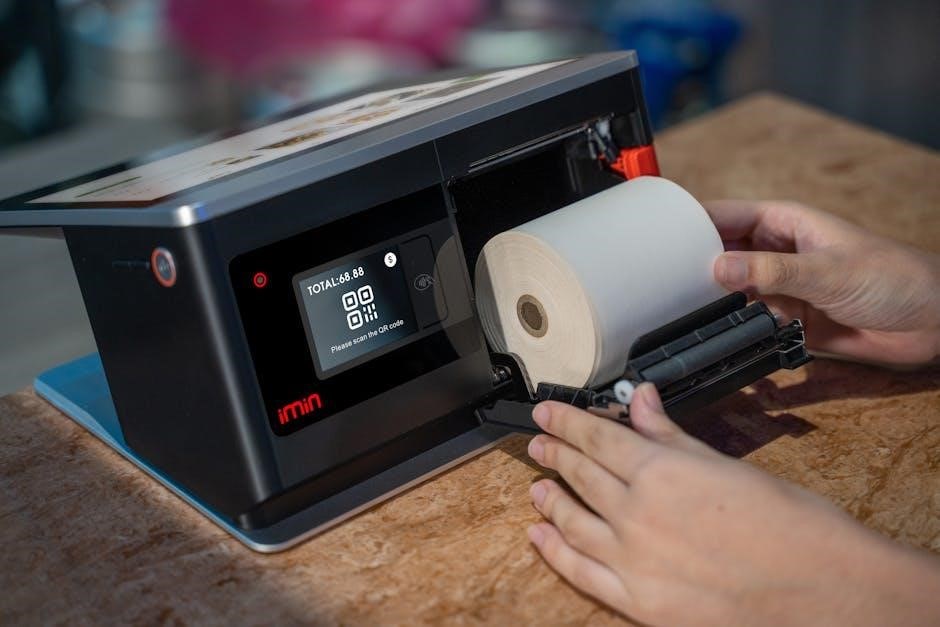
SiPix Pocket Printer A6 Ultra Portable Thermal Printer ─ Manual: A Comprehensive Guide
This manual provides detailed instructions for setting up, using, and troubleshooting your SiPix Pocket Printer A6. It covers driver installation, printing from various devices, and essential package contents.
Welcome to the world of portable printing! The SiPix Pocket Printer A6 represents a significant leap in on-the-go thermal printing technology. This compact and lightweight device allows you to instantly create hard copies of your digital images and documents, directly from your computer or compatible handheld devices like Palm and Pocket PCs.
Designed for ultimate convenience, the A6 utilizes thermal paper rolls, eliminating the need for messy ink cartridges. This printer is ideal for professionals, students, and anyone who requires immediate, portable printing solutions. The included driver CD v1.03 ensures compatibility with Windows 98/98SE, 2000, and XP, as well as Palm OS 3.3-4.1 and Pocket PC 2002 operating systems.
Furthermore, Adobe Acrobat 5.0.0 is bundled for easy access to the comprehensive user manual. Prepare to experience the freedom and flexibility of the SiPix Pocket Printer A6 – your personal printing companion!
What’s in the Box: Package Contents
Upon unboxing your SiPix Pocket Printer A6, please verify that all the following components are present. Ensuring you have everything listed is crucial for a seamless setup and optimal printing experience. The package should include the SiPix Pocket Printer A6 unit itself, a testament to portable printing innovation.
You’ll also find four (4) AA Alkaline batteries to power your printer, allowing for immediate use upon purchase. A dedicated AC Adapter is included for convenient recharging or continuous operation when a power outlet is available. Connectivity is established through a specialized Printer Cable, featuring a D-sub 9 pin connector for your PC and a Mini Din 8 pin connector for the printer.
Finally, to get you started right away, the package contains one roll of thermal paper. Carefully inspect all items for any signs of damage during shipping. If anything is missing or damaged, please contact customer support immediately.
Printer Overview: Front, Back, and Inside
The SiPix Pocket Printer A6 boasts a compact and user-friendly design. Examining the front panel reveals the paper output slot, where your freshly printed images or text will emerge. The power button, conveniently located, initiates the printing process and manages the device’s energy consumption. Turning the printer around, the back panel showcases the battery compartment, accommodating four AA Alkaline batteries for portable power.
The printer cable port, utilizing a Mini Din 8 pin connector, is also situated on the back, facilitating connection to a computer. Opening the printer reveals the internal mechanics, specifically the thermal print head and the paper roll compartment. This area is designed for easy paper loading and maintenance.
Understanding these key areas will help you operate and maintain your SiPix A6 effectively. Familiarize yourself with the location of each component for a smooth and efficient printing experience. The internal components are delicate, so handle with care.

Getting Started with Your SiPix A6
Before printing, ensure you have all components: batteries, AC adapter, and the printer cable (D-sub 9 pin to Mini Din 8 pin) for seamless connectivity.
Installing Batteries: Powering the Printer
To begin using your SiPix Pocket Printer A6, you’ll need to install four AA alkaline batteries. Locate the battery compartment, typically on the back of the printer. Gently slide open the compartment cover. Insert the batteries, paying close attention to the polarity markings (+ and -) inside the compartment – incorrect insertion will prevent the printer from functioning correctly.
Ensure each battery is securely seated within its designated slot; Once all four batteries are in place, carefully slide the compartment cover back into its closed position until it clicks securely. The printer is now powered and ready for operation.
Alternatively, you can power the printer using the included AC adapter. Connect the adapter to a suitable power outlet and then to the printer’s power input port. Using the AC adapter will conserve battery life and is recommended for extended printing sessions. Remember to remove the batteries if you intend to use the AC adapter for a prolonged period to avoid potential leakage.
Connecting to a Computer: Cable Details (D-sub 9 pin to Mini Din 8 pin)
To connect your SiPix Pocket Printer A6 to a computer for direct printing, you’ll utilize the included specialized cable. This cable features a D-sub 9-pin connector on one end, designed for connection to your computer’s serial port, and a Mini Din 8-pin connector on the other end, which plugs into the printer itself.
Carefully align the connectors and firmly insert the D-sub 9-pin end into the serial port on your computer. Then, connect the Mini Din 8-pin end into the corresponding port on the SiPix A6 printer. Ensure both connections are secure to prevent communication errors during printing.
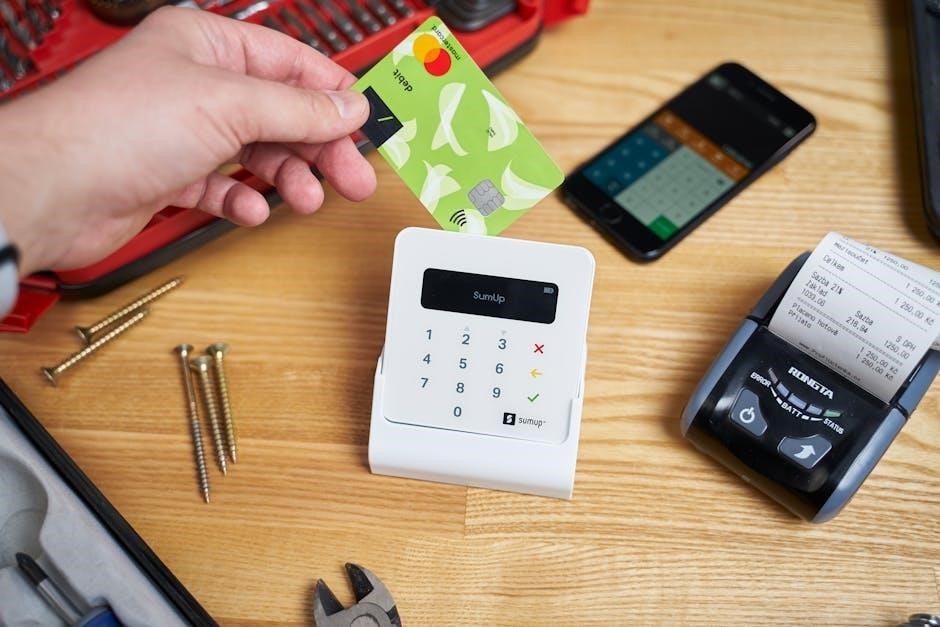
Note that modern computers often lack a serial port. In such cases, you may require a USB-to-serial adapter. After physically connecting the cable, you’ll need to install the appropriate drivers (covered in a separate section) to enable communication between your computer and the printer. Proper driver installation is crucial for successful operation.
Initial Setup: First-Time Use
Upon unboxing your SiPix Pocket Printer A6, the first step is verifying all components are present. This includes the printer itself, a roll of thermal paper, four AA alkaline batteries, the printer cable (D-sub 9 pin to Mini Din 8 pin), and the driver CD. Before proceeding, inspect all items for any signs of damage during shipping.
Next, install the batteries by opening the battery compartment (refer to the ‘Installing Batteries’ section for detailed instructions). Ensure correct polarity when inserting the batteries. Once powered on, you may be prompted to install the drivers from the included CD. If the CD doesn’t auto-run, navigate to it manually and launch the installation program.
Following driver installation, connect the printer to your computer using the provided cable. A test print is recommended to confirm proper functionality. Refer to the ‘Printing from a PC’ section for step-by-step instructions. Your SiPix A6 is now ready for portable, on-demand printing!

Driver Installation & Software
The SiPix A6 driver CD v1.03 includes essential software for Windows 98/98SE/2000/XP, Palm OS 3.3-4.1, and Pocket PC 2002, plus Adobe Acrobat 5.0.0.
Driver CD v1.03: Contents and Compatibility
The SiPix Pocket Printer A6 Driver CD v1.03 is a crucial component for enabling full functionality between your printer and various computing platforms. This CD serves as the primary source for installing the necessary drivers and software required for seamless operation. It’s specifically designed to support a range of operating systems, ensuring broad compatibility for users.
For Windows users, the CD includes drivers compatible with Windows 98, Windows 98SE, Windows 2000, and Windows XP. This covers a significant period in Windows operating system history, making the printer accessible to a wide user base. Palm OS and Pocket PC users are also catered for, with drivers compatible with Palm OS versions 3.3 through 4.1, and Pocket PC operating systems including Pocket PC 2002.
Beyond the core drivers, the CD also bundles Adobe Acrobat 5.0.0. This inclusion is particularly useful as it allows users to readily view and print the comprehensive PDF manual that accompanies the SiPix A6 printer, providing detailed instructions and troubleshooting guidance. The CD’s contents are carefully curated to provide a complete software package for optimal printer performance.
Windows Driver Installation (98/98SE/2000/XP)
Installing the SiPix Pocket Printer A6 driver on Windows (98, 98SE, 2000, or XP) is generally a straightforward process. Insert the Driver CD v1.03 into your computer’s CD-ROM drive. Ideally, the installation should auto-run, initiating the setup wizard. If auto-run doesn’t activate, navigate to the CD drive within “My Computer” or “Windows Explorer” and manually launch the setup file.
Follow the on-screen prompts carefully throughout the installation process. The wizard will guide you through accepting the license agreement, selecting the installation directory, and configuring printer settings. It’s recommended to accept the default settings unless you have specific requirements. The installer will copy the necessary files to your system and configure the printer for optimal performance.
After installation, it’s advisable to restart your computer to ensure all changes are properly applied. Once restarted, your SiPix A6 printer should be recognized by Windows and ready for use. You can then test the installation by printing a test page through the Windows printing preferences.
Palm & Pocket PC Driver Compatibility (OS 3.3-4.1 & Pocket PC 2002)
The SiPix Pocket Printer A6 offers compatibility with Palm OS versions 3.3 through 4.1, as well as Pocket PC 2002 operating systems. To install the necessary drivers on your Palm or Pocket PC device, insert the Driver CD v1.03 into a compatible CD-ROM drive connected to your computer.
Connect your Palm or Pocket PC device to your computer using a suitable synchronization cable (typically a USB cable). Launch the synchronization software associated with your device (e.g., Palm Desktop, Windows Mobile Device Center). Within the synchronization application, navigate to the driver installation section.
Select the SiPix Pocket Printer A6 driver from the available options and initiate the installation process. The driver files will be transferred to your device. Once the installation is complete, you should be able to recognize and utilize the printer directly from your Palm or Pocket PC. Ensure your device is properly configured to communicate with the printer via the connection cable.
Adobe Acrobat 5.0.0: Included Software
The SiPix Pocket Printer A6 Driver CD v1.03 conveniently includes a full copy of Adobe Acrobat 5.0.0. This software is bundled to allow users easy access and viewing of the printer’s comprehensive PDF manual. Adobe Acrobat 5.0.0 provides the necessary functionality to open, read, and print the detailed documentation accompanying your SiPix A6 printer.
This inclusion eliminates the need for users to separately locate and download the PDF reader. Simply insert the CD into your computer’s drive, and the installation process for Adobe Acrobat will begin automatically, or can be initiated manually. The software offers essential features for navigating and understanding the printer’s operational guidelines.
Having Adobe Acrobat 5.0.0 pre-installed ensures a seamless experience when accessing the user manual, troubleshooting guides, and other important information provided in PDF format. It’s a valuable addition for all SiPix Pocket Printer A6 owners.
Printing with the SiPix A6
This section details the process of printing with your SiPix A6, covering paper loading procedures and step-by-step guides for both PC and Palm/Pocket PC connections.
Paper Loading: Using Thermal Paper Rolls
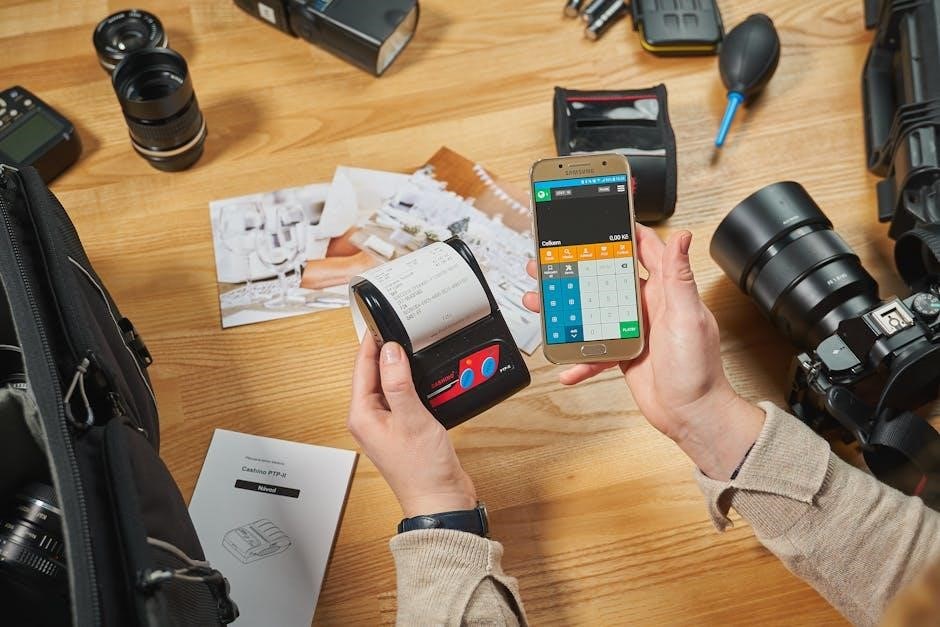
To load thermal paper into your SiPix A6, begin by gently opening the printer’s paper compartment, typically located on the inside. Ensure the printer is powered off during this process to prevent any potential issues. Take a fresh roll of compatible thermal paper – the SiPix A6 is designed specifically for thermal rolls.
Insert the roll into the compartment, ensuring the paper’s thermal side (the coated side) faces upwards and towards the print head. Carefully guide the paper’s leading edge through the designated paper feed slot. You may need to slightly adjust the paper roll’s position to ensure smooth feeding.

Once the paper is fed through, close the paper compartment securely. Power on the printer. A self-test print can be initiated to confirm proper paper loading and print head functionality. If the paper doesn’t feed correctly, re-open the compartment and check the paper’s alignment and the feed mechanism for any obstructions.
Printing from a PC: Step-by-Step Guide
To print from your PC to the SiPix A6, first ensure the printer is properly connected using the included cable – a D-sub 9 pin to Mini Din 8 pin cable. After installing the correct Windows driver (compatible with 98/98SE/2000/XP), open the application from which you wish to print.
Select “Print” from the application’s menu. In the printer selection dialog box, choose “SiPix Pocket Printer A6” as your printer. Configure your desired print settings, such as paper size and print quality, within the printer properties.
Preview your document to confirm the layout before proceeding. Click “Print” to send the print job to the SiPix A6. The printer will then begin thermal printing. Monitor the printing process and ensure the paper feeds correctly. If issues arise, verify the cable connection and driver installation.
Printing from Palm/Pocket PC: Connection and Process

To print from your Palm or Pocket PC to the SiPix A6, a compatible operating system is crucial – Palm OS 3;3-4.1 or Pocket PC 2002. Connect the SiPix A6 to your device using the provided cable (D-sub 9 pin to Mini Din 8 pin). Ensure the necessary drivers are installed on your Palm/Pocket PC; these are available on the included Driver CD v1.03.
Once connected and drivers are installed, open the application on your Palm/Pocket PC containing the content you wish to print. Select the “Print” option within the application. The SiPix Pocket Printer A6 should appear as a selectable printer.
Configure any available print settings, then initiate the print job. The data will be transferred to the printer via the cable, and the thermal printing process will begin. Verify successful data transfer and monitor the printing process for any errors.

Troubleshooting & Support
This section offers solutions to common issues, driver re-installation guidance, and resources for further assistance with your SiPix Pocket Printer A6.
Common Issues and Solutions
Printer Not Recognizing Computer: Ensure the correct cable (D-sub 9 pin to Mini Din 8 pin) is securely connected to both the printer and your computer. Verify the printer is powered on. Try a different USB port on your computer. Reinstalling the drivers can often resolve connectivity problems.
Printing is Faded or Blank: This usually indicates low battery power. Replace the 4 AA Alkaline batteries with fresh ones. Also, confirm you are using compatible thermal paper rolls. Ensure the paper is loaded correctly, with the thermal side facing upwards.
Driver Installation Errors: If the CD doesn’t auto-run, manually navigate to the CD-ROM drive and run the setup.exe file. For Windows 98/98SE/2000/XP, ensure your system meets the minimum requirements. If issues persist, temporarily disable any antivirus software during installation. Consider downloading the latest drivers if available.
Palm/Pocket PC Connection Issues: Confirm your Palm or Pocket PC OS is compatible (3.3-4.1 or Pocket PC 2002). Ensure the correct connection settings are configured on your handheld device. Restart both the printer and your handheld device.
Driver Re-installation Instructions
Before you begin: Disconnect the SiPix A6 printer from your computer. Locate the original Driver CD v1.03, or explore options for downloading the drivers from online archives if the CD is unavailable. It’s recommended to close all other applications during the re-installation process.
Windows Re-installation: Insert the CD (or run the downloaded installer). If auto-run doesn’t initiate, navigate to “My Computer,” open the CD drive, and double-click “setup.exe.” Follow the on-screen prompts. If prompted, allow the installer to make changes to your system. Restart your computer after the installation completes.
Palm/Pocket PC Re-installation: Connect your Palm or Pocket PC to your computer. Ensure your device is recognized. Run the appropriate installer from the CD for your OS (Palm OS 3.3-4.1 or Pocket PC 2002). Follow the on-screen instructions. You may need to manually transfer files to your device depending on your synchronization software.
Post-Installation: Reconnect the printer and test functionality. If problems persist, verify the device manager recognizes the printer without errors.
Where to Find Additional Help & Resources
Online Archives: The Internet Archive ([https://archive.org/](https://archive.org/)) hosts a copy of the SiPix Pocket Printer A6 Driver CD v1.03, offering a valuable resource for driver downloads and the original manual. This is particularly useful if you’ve misplaced the physical CD.
ManualsLib: Websites like ManualsLib ([https://www.manualslib.com/](https://www.manualslib.com/)) provide access to the SiPix A6 user manual online, offering detailed information on all aspects of the printer’s operation, troubleshooting, and specifications. Search for “SiPix Pocket Printer A6” on their platform.
Online Forums: Communities like hpcfactor.com ([https://www.hpcfactor.com/](https://www.hpcfactor.com/)) may contain discussions and user experiences related to the SiPix A6. Searching these forums can reveal solutions to common problems and helpful tips from other users.
SiPix Support (Limited): While SiPix is no longer actively supporting this model, exploring archived websites or contacting related companies might yield limited assistance. Remember this printer is quite old.